Showing posts with label Mobile Apps. Show all posts

Wednesday, October 17, 2007

Nokia N810 Internet Tablet released - Competetion of iPod touch ?

Nokia announces the release of their Internet Tablet, the Nokia N810.

You can view the official photos of this device here - http://www.nokia.com/A4136017?category=n810

Please do not confuse this device for a mobile phone because of the Nokia branding. The internet tablet is a wifi-enabled Mobile Internet Device.

This device provides you with an option to connect to the internet while you are on the move. You can do what you usually do with a PC.. you can browse, chat, make internet calls, access web applications and apart from that you can use it as a media player as well.. all this while you are travelling and away from your PC.

The device has a 4.13" (800x480 pixel resolution) touch-screen. Unlike iPod touch, you also have an option to use qwerty keyboard.

Also, it comes with an integrated GPS with an built-in maps and satellite navigation applications.

And yes (I am happy to say this :)), it is based on the Maemo Linux Operating System (Debian Linux derivative) . Now this is very important for the device to gain popularity. This device provides an environment where Linux developers from around the world can contribute towards developing interesting applications for this device. If developers are interested, users would also be interested as well as they have more choices in terms of applications for this device.

Now, I could not find a page where its specs are given. The specification details given in the press release are scattered. So here is the consolidated specification of this device that I could derive from the press release. The list is kind of crude and is incomplete. But is better than what is mentioned in the press release :)

Hardware Specification:


  • Screen Size: 4.13" (800x480 pixel resolution)
  • Connectivity: Bluetooth and Wifi
  • Touch screen and Sliding Qwerty keyboard
  • GPS
  • Integrated VGA camera
  • External Memory: 10GB Memory Card (Optional)

Software Specification:

Highlights:
  • Offers true Web2.0 experience.
  • Open platform. Gives an opportunity for the open source developers to take part.
  • Touch Screen & Qwerty keyboard available

My Thoughts:
As, I have mentioned before, Mobile web is picking up pretty well and it is going to be next happening this after the PC revolution. Your life is more and more going to depend on these intelligent mobile devices. I wouldn't be surprised even if people stop buying PCs 10-15 years down the line when all they need is accessible through a mobile device.

Nokia realizes the potential for a Mobile Internet Device and is got a lead with their Internet Tablet series.

The iPod touch, I feel is more or less similar to the Internet Tablet. Both these devices are going to prove that mobile devices are a capable platform for accessing the Internet.

Now that brings up an interesting point. Nokia and Apple are competing with each other directly. While Nokia shows the media player functionality to their Internet Tablet, Apple has brought Web Browsing capabilities to the popular iPod media player.

Nokia, I feel has an obvious advantage here. Having been the leaders in Mobile phones, they are well placed to come up with more innovations to their devices. Also, the Internet Tablet provides an open platform for developers to value-add by writing applications of their choice. iPhone/iPod touch are very restricted in terms of supporting the developer community. Apple may lead the race for now in terms of usability and multi-touch features of their device. But its a matter of time before these features become a commodity.

Friday, October 12, 2007

Mobile platform-specific Google Maps!!

Wow.. finally Google Maps specifically created for S60 Symbian platform.

Here are some screenshots of the new Google Maps installed on my Nokia E61 :).


By the way, I found this review at All About Symbian about the new Google Maps very useful.

I knew this would eventually happen. This is what I was suggesting to Schrep in my comments to his post. I was mentioning about my thoughts on how Firefox for mobile phones should follow a strategy where first they come up with a Java based firefox so that they can capture the mass market and then they followup with a platform specific firefox application which gives a better performance.

Now, Google did just that. They first came up with a java-based Google Maps. This ensured that most of the phones start using Google Maps (capture the mass market). Now they've come up with a platform-specific Google Map which is available for Windows Mobile, Palm OS, Symbian and Blackberry, which gives a better performance and also utilize phone-specific features. For example, the new Google Map uses the phones' GPS if that's available. So if you install the new Google Maps on your Nokia N95, then it will automatically use the inbuilt GPS to show your location on the map.

For those who are not familiar with mobile applications.. what this means is that the previously available Google Map application (software) for the mobile phones was written (developed) using Java. Which means any Java enabled phone was install and use Google Maps on their phone. So you must be asking whats the big deal about Google Maps now?!!

Well, any Java-based application runs on top of the Java Virtual Machine (JVM) which in turn runs on top of the mobile OS (platform). Which means there will be a comparable difference in performance between a Java-based application and a platform-specific application. Obviously, platform-specific applications are must faster. Also, developing mobile applications using the platform specific APIs (Application Programming Interface) will let us utilize any in-built phone features like GPS (as I've mentioned above).


[Article moved from http://mohasinz.blogspot.com/2007/10/mobile-platform-specific-google-maps.html]

Thursday, September 27, 2007

Review: Opera Mini 4 Beta 2

Opera Mini 4 beta 2 is a mobile browser for mobile phones which are java enabled. It is one of the (probably the one and only) best mobile browser around which provides superior browsing experience.


What makes it superior is the fact that it gives a true browsing experience, in the sense, it is capable of rendering actual web pages as you would see it on a desktop web browser like IE, Firefox or Opera.

An other factor that makes it really superior is its performance. Pages are fetched and rendered very fast and definitely it is the fastest mobile browser around. The magic behind this performance is due to the fact that the requested web pages are first processed and optimized by Opera's proxy servers and then given to the mobile phone. Size of the images in these optimized web pages is greatly reduced though the only minor drawback is that their resolution is very less. But thats a small sacrifice for the responsiveness that is gained in turn.
About Opera Mini
I would like to only touch of upon some of the notable features. For a complete list of features, Opera Mini's web site is the best place to refer (its a great page explaining all the features crisp and clear).

Henceforth, in this post, when I say "Opera Mini" I am referring to Opera Mini 4 beta 2

Start Page:

Opera Mini's startup page is a really smart move towards usability. At first, I was not happy with this because the default browser that comes along with the Nokia phones (based on S60,3rd edition platform) which takes you to a default home page that you have set. But after having used Opera Mini for quite some time, I found that it was a good thing to have a start page. What makes start page so useful is the fact that all you bookmarks and your recent browsing history is accessible from here. Well thought usability!!

Start Page

Menu

Web page Preview:

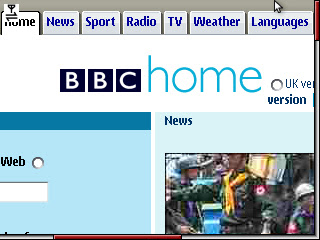
Any page fetched by default is shown in a fit-to-screen preview. A small box overlay hovers over the preview which can be moved in any direction either using the keypad or using your phones joystick. This box overlay gives an indication of the content that would be zoomed onto fit the phone's screen. A cute little mouse pointer is also provided which proves to be useful at times when selecting items in that web page.
When scrolling through a web page (in zoomed mode), Opera aligns/positions the page automatically such that the text appears centrally. So that way we do not have a scroll left/right to adjust the text such that it falls within the viewable region. Very intelligent!!

Full page preview


Zoomed portion of the preview

Shortcut Keys:

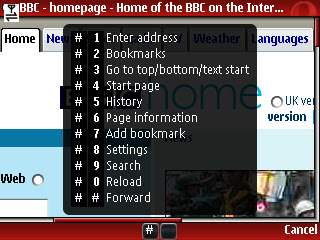
There are shortcuts for doing almost any operation. There are two sets of shortcuts: the first set is accessed by pressing "#" key followed by other characters. This gives the most common operations like managing your bookmarks or navigating between pages. The second set of shortcuts can be accessed by pressing "*" key followed by other character. These shortcuts are used to access bookmarked web sites and to change the viewing mode to full screen or toggling between portrait and landscape mode. Check the screenshots below the complete list of shortcuts.

Shortcuts accessed by pressing #

Shortcuts accessed by pressing *

Bookmarks:

Websites can be easily bookmarked by using the shortcut "#7". You can also bookmark a website by chossing Add Bookmark option from Menu->Tools.
While adding a bookmark, you can also choose to display this bookmark on the start page. not adding all bookmarks to the start page ensures that the start page is not cluttered and only the most important bookmarks are availabled for access on the start page.

Adding bookmark from the Menu

Choose to display this book mark in the start page

You can manage the add/delete/modify/rearrange the bookmarks by pressing the shortcut key "#2" and then selecting the Manage option. You can also access the bookmark list from the menu.

Managing bookmarks

One of the biggest drawbacks of Opera Mini has to do with the reordering of the bookmark list. Say, for example, you need to move a particular bookmark from the bottom of the list to the top, then you would have to click Manage->Move Up every single time until the item reaches to the top. Especially if your list is huge, any new bookmark appears at the bottom of the list and it becomes a pain to move this new bookmark to the top of the list.

Viewing in Landscape and Portrait modes:

This is one feature which not just cool but also very useful. Most of the phones these days have bigger screen which are tall but not wide. (there are exceptions, for example, my Nokia E61 has a wider screen which gives you landscape view). For these kind of phones this is useful feature where you can rotate the screen to make it into a landscape mode thus giving you more reading space on the screen. I highly appreciate this feature because very few phones have this inbuilt capability to rotate the screen from portrait to landscape mode (Nokia E60 has this feature inbuilt). "*#" will toggle between landscape and portrait mode.

Screen in landscape mode.
Screen in portrait mode

Apart from these viewing modes, in each of these modes you can choose to have these pages displayed in Full screen mode. "**" will toggle between full screen mode and normal mode.

In Normal Mode

In Full screen mode

Search Engines:

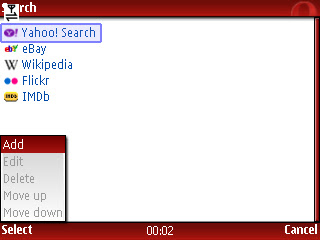
There is inbuilt support for some of the popular search engines to which you can issue a query. Since Opera has tied up with Yahoo, they seem to have not included Google and MSN search. I was not sure how to add a new search engine, say Google, all by myself. Though I added Google to the list of search engines, but when I issued a query, Opera says the page could not be found.

Multiple Search Engines

Settings:

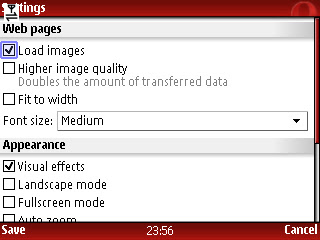
From the settings screen, you can choose to disable images from being loaded. Disabling images would make you pages load even more faster. You can also choose an option to make you web page fit to the screen's width.


Settings Screen

You can also choose your default viewing mode: Landscape/Portrait and Full Screen.

Settings Screen (contd.)


Verdict:

Pros: Great browser with great usability and performance. Support for Portrait/Landscape mode of viewing. Easy shortcuts for doing almost anything.

Cons: It is a pain to reorder your bookmarks. Cannot search within a page. Not sure how to added other search engines. Some (very few) web pages are rendered blank.

But on a whole, this is the best mobile browser around. Guaranteed.. you will be hooked to it for a very long time.

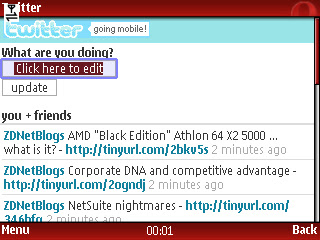
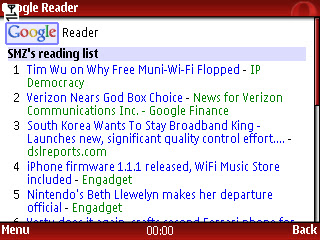
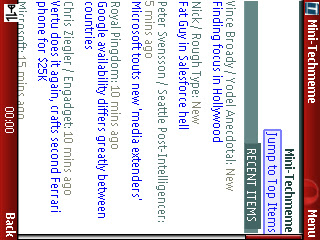
Below are some of the screenshots of other web pages that were browsed using Opera Mini.

Twitter - Mobile Version


Google Reader - Mobile version

Mini Techmeme - Mobile version of techmeme

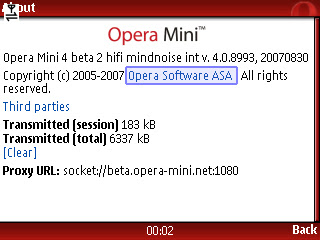
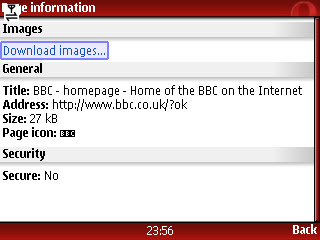
Page Information for the web page being displayed

Tuesday, September 25, 2007

Free Screen Capturing on Symbian Phones

Are you a reviewer like myself who wants to take screenshots of your symbian phone. Whatever might be the reason for screen capturing, many of us find it difficult to locate a free tool for doing the same.


Eventually we would end up finding this nice free tool called Screenshot for Symbian OS which was developed by Antony Pranata.
This mobile application is a freeware and its source code is also available for you to modify under GPL.

Screenshot for Symbian OS is available for Symbian OS S60 (1st, 2nd and 3rd editions) and UIQ 2.x platforms.

Features of Screenshot for Symbian OS:
- Capturing Mode: Lets you capture one shot (default) or shots every 1, 2, 5 and 10 seconds.
- Shortcut: Lets you choose from 5 predefined pair of keys which need to pressed for taking a screenshot. Default is + key combination.
- Image Format: You choose to save the image as JPEG or PNG of different qualities.
- Location: You can either choose to store the capture screen images either in the phone memory or external storage card.
- File name: Choose the prefix text that is used to form the name of the captured image file.
- Directory: Choose a directory name under which the screen capture image files are stored.
- Delay of first shot: You can choose to give a delay before taking the first shot. Default is "No delay".

When you launch the application, it has a back button for hiding the application in the background. The application shows the last captured screenshot on its home screen. You can choose to send this to a different phone or your PC based on the connection capabilities of the phone. You can also choose the deactivate screen capture if you choose to such that screen capture does not work if you press the keys combination.

Ironically, this tool does not let you take a screenshot of the settings screen of this application.

On a whole, this application does a great job of capturing the screenshots on your phone.


Home screen

Folder showing the captured images.


Settings screen captured on a Nokia E61